- Added Vista info
- Updated the path to flashlog.txt for Linux
- Split Step 4 into two steps
- Added optional OSX step for creating aliases
- Added Linux info
- Changed mm.cfg file location for Windows 2000
- Made corrections to Step 4
- As of Flash Player version 9,0,28,0, the default location of flashlog.txt has changed and cannot be modified
- Changed the property order in mm.cfg
The original order would sometimes change the name of the flashlog on mac. - Changed MaxWarnings from 100 to 0
This allows an unlimited number of error messages to be written to the flashlog. - Changed which tail software I recommend for Windows
I have settled on the tail that is included with Windows Server 2003 Resource Kit Tools.
It’s native to Windows, easier to install than cygwin, and more stable than Tail XP.
Some great 3rd party debug tools have been released in the past few months that expand upon the standard trace() in Flash. I recently wrote about one of them. Unfortunately, I’ve noticed myself not using these tools as often as I would like because its usually easier and quicker to just use trace(). The biggest drawback about trace, however, is that there’s no way to output from the browser … or is there?
The other day I stumbled upon an article by Josh Buhler at actionscript.org that shows you how to install the Flash Debug Player that’s buried in the application folders of Flash. The Debug Player, along with a text file, allows you to view standard traces from a swf in the browser. Now, if you’ve already read his article skip on down to the bottom of this page because I’ve added a step that will make you even happier. If you haven’t read his article yet, go on what are you waiting for? If, on the other hand, you like step-by-step instructions that get you up and running the fastest, I’ve recapped his process below. I’ve done this on both the mac and pc and can’t live without it now.
- Uninstall your Flash Player
Find the uninstaller here:
Adobe Flash Player Uninstallers.
Even though this is the first step, this is the one that you’re going to question the most, should I really uninstall my Flash Player and install the Debug Player? The answer is an emphatic “yes”. The Flash Debug Player is the exact same player with a very nice extra feature. - Install the Flash Debug Player
Find the installer here:
Adobe Flash Debug Players - Verify installation of the Flash Debug Player
Restart your browser and right-click (ctrl-click) on a swf.
You should have the “Debugger” option in the context menu, like the example below.
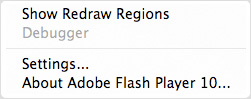
- Create a text file named “mm.cfg” and save it here:
- OSX
MacHD:Library:Application Support:Macromedia:mm.cfg - Windows Vista
C:\Users\username\mm.cfg - Windows XP
C:\Documents and Settings\username\mm.cfg - Windows 2000
C:\mm.cfg - Linux
home/username/mm.cfg
- OSX
- Add the following properties to mm.cfg
- ErrorReportingEnable=0
- TraceOutputFileEnable=1
- MaxWarnings=0
FLASH DEBUG PLAYERS 9,0,28,0 AND NEWER
The property TraceOutputFileName is no longer needed in mm.cfg. The default location of flashlog.txt has changed and cannot be modified from the following locations:
- OSX
MacHD:Users:username:Library:Preferences:Macromedia:Flash Player:Logs:flashlog.txt - Windows Vista
C:\Users\username\AppData\Roaming\Macromedia\Flash Player\Logs\flashlog.txt - Windows XP and 2000
C:\Documents and Settings\username\Application Data\Macromedia\Flash Player\Logs\flashlog.txt - Linux
home/username/.macromedia/Flash_Player/Logs/flashlog.txt
FLASH DEBUG PLAYERS 9,0,16,0 AND OLDER
Add the property TraceOutputFileName to mm.cfg
- OSX
TraceOutputFileName=MacHD:Users:username:Desktop:flashlog.txt - Windows
TraceOutputFileName=C:\Documents and Settings\username\Desktop\flashlog.txt
- Test the Flash Debug Player
Restart your browser and either publish a swf that uses trace() and view it in the browser, or surf around and find out what other people have been tracing in their movies (that’s one of my favorite options).
The traces have been output from the browser to flashlog.txt.
Open up flashlog.txt and see for yourself, you know you want to.
And there you go.
I’m sure many of you are extremely happy right now, and you should be, this is a great tip.
But after a few uses, you’re going to get really annoyed opening and closing the text file to view the new traces … if only there was a way to view the text file being updated in real time like the Output window in Flash. Here’s the new step that will make you rejoice.
NEW STEP
- View the text file updating in real time
- OSX
- Open Terminal
- At the prompt type:
cd <path to flashlog's directory>
tail -f flashlog.txt
- Windows
Go to Windows Server 2003 Tools, and download Windows Server 2003 Resource Kit Tools near the bottom of the page.
Although it says Windows Server 2003 all over the page, its also made for Windows XP.- Install
- Open Command Prompt
- At the prompt type:
cd <path to flashlog's directory>
tail -f flashlog.txt
- OSX
Browse to a swf online that uses trace() and watch the magic. Terminal and Command Prompt display the contents of flashlog.txt as it changes … its just like having Flash’s Output window, except this one works in the browser!!
Isn’t this great? Like I said earlier, I’ve gotten this to work on both the mac and the pc and can’t live without it now.
If you have any questions about these steps, feel free to email me or comment below and I’ll be glad to help.
OPTIONAL STEP
- Create a shortcut to quickly load up flashlog
- OSX
- Create aliases
- Open Terminal
- At the prompt type:
cd ~
ls -a - Make sure there is a file named “.bash_profile”
- If there isn’t, create one by typing the following at the prompt:
touch .bash_profile - Open .bash_profile to edit it
- Add the following content to .bash_profile:
alias trace='open -a /Volumes/MacHD/Applications/Utilities/Console.app/ /Users/username/Library/Preferences/Macromedia/Flash\ Player/Logs/flashlog.txt'alias cleartrace='cat /dev/null > /Users/username/Library/Preferences/Macromedia/Flash\ Player/Logs/flashlog.txt' - Save .bash_profile
- Restart Terminal
- To open up Console displaying the active flashlog.txt file, type the following at the prompt:
trace - To clear flashlog.txt, at the prompt type:
cleartrace
- Create aliases
- Windows
- Create a batch file
- Create a text file and rename it flashlog.bat
- Right-click on the batch file and select “Edit”
- Add the following content to flashlog.bat:
cd <path to flashlog's directory>
tail -f flashlog.txt - Double-click on the batch file to see it working.
- Create a shortcut to the batch file to set the Command Prompt colors and options
- Right-click on the batch file and select “Create Shortcut”
- Right-click on the shortcut and select “Properties”
- To view the Command Prompt maximized change the pulldown under “Run:”
- To change the colors of the Command Prompt select the “Colors” tab
- Unfortunately the “Font” tab options are very limited
- Under the “Options” tab, select “QuickEdit mode” to be able to easily select and copy and paste
- Tip for copying and pasting in the Command Prompt:
- Select the text you want to copy and then right-click it, this puts the selected text into the clipboard … now just hit ctrl-v or paste in any other program.
- Close out of the properties and double-click on the shortcut to see the flashlog with your colors and options.
- Create a batch file
- OSX

Hey – glad you liked the article. I should add the info about using TailXP to it. On my Mac, I’ve actually been using Console.app to handle viewing the file. It’s in Applications > Utilities > Console.app. It’s a little easier than the Terminal. Of course, you don’t get that geek wow factor of having text constantly streaming by in your terminal though…
This is great.. only now I see my sloppy coding.
Thanks!
I added these aliases to my /etc/profile file (on mac/unix). This just creates temporary aliases for the tail command and the rm command. so you just have to type “trace” in the command line to make it work. You can also use “cleartrace” to reset the flashlog.txt file. (note: all previous traces will be lost.)
alias trace=tail\ -f\ /Users//Desktop/flashlog.txt
alias cleartrace=rm /Users//Desktop/flashlog.txt
Here’s an eclipse plugin that will let you watch the log file (at max intervals of 1 sec) inside eclipse. Great for FDT/ASDT.
http://graysky.sourceforge.net/
Hi, I have followed the steps extremelly carefully but just can seem to get the falshLog.txt to be updated, no matter what…
Are there any know issues that must be solved before taking the steps above?
Thanks for any advice…
This is a great tip.
Anyone have a simple way to clear the command console?
re: Anyone have a simple way to clear the command console?
type cls in the command window
I love this tip, thanks…
Anybody have any luck getting this working with the Flash v9 debug player that installs with the Flex Builder 2 beta for osx?
I’m writing to ask the same question as above — I can’t get the debug version of 9 to work on my Intel Macs — has anyone had any luck with this?
Right, I have the same issue. I managed to make it work in my powerpc mac but not in intel. It is a pity, it is really nice to have debugging available right from the browser…
Hi there..I can’t make it work and i need this functionality..
I follow your steps and i can’t event find the “MacHD:Library:Preferences:Macromedia:Flash Player:Logs:flashlog.txt” file.ANy help, please?
I have a mac PPC and the debug version of FP installed..
Thanks anyway..
I don’t have access to a PPC mac right now, so I might be wrong about that location. If someone could search their computer for the flashlog.txt and get back to me I’ll make the update.
As for intel macs, I installed the Flex 2 Beta to get the Debug Player but so far no luck in finding the flashlog.txt file. Again, if anyone knows, post a comment so I can update this page.
Thanks.
Thanks for the reply..Let me get this right..A “flashlog.txt” should be in my machine after the debug player installation?Because there isn’t..
Awesome article except it does not work for me. I think I have followed your steps properly.
I am using Windows XP Pro. I have uninstalled Flash Player and then re-installed 9,0,28,0 with debug(once for IE and once for Firefox etc). I even restarted my computer when trying to set it up again. I have been running swfs that have trace in them but alas no flashlog.txt. I added a Logs folder, which was absent, and this did not help either.
I did have Debugging Permitted in the publish settings and tried turning that off.
I have searched the entire computer for flashlog.txt .. no luck.
Nothing seems to work.
Hey Carl,
It definitely works, I just walked through all the steps again to make sure.
You definitely don’t need to add a Logs folder it will be created for you in the Flash Player directory.
Try again and see if you have better success.
This thread on the Adobe forum explains what has changed with the Intel Debug plugin for Flash 9, and how to get your trace output working….
Excellent guide…
Did not get it working with 9.0.28 on WinXP Pro, first, but then created the mm.cfg (without TraceOutputFileName parameter) and got my flashlog.txt
So, it seems that step 4b is mandatory also for “FLASH DEBUG PLAYERS 9,0,28,0 AND NEWER”
Great article, thanks. Really helpful and easy to follow.
Just one further question, do you by any chance know how to automatically archive and clear the content flashlog.txt after each browser session?
An additional note – it appears the only way to get the v9r28 debug player for Intel Macs is to install Flex Builder. The download link on Adobe’s page only has the PPC versions of the debug player, for some strange reason.
Also, to add to the comments from Josh and Mims above, you can add the following lines to your .bash_profile to map the trace/cleartrace commands to use Console.app (replace the hard drive name and username in brackets with the ones for your system):
alias trace=’open -a /Volumes/[HARD DRIVE NAME]/Applications/Utilities/Console.app/ /Users/[USERNAME]/Library/Preferences/Macromedia/Flash\ Player/Logs/flashlog.txt’
alias cleartrace=’cat /dev/null > /Users/[USERNAME]/Library/Preferences/Macromedia/Flash\ Player/Logs/flashlog.txt’
Then you can just open a terminal session and type ‘trace’ to open the trace output in Console.app, or type ‘cleartrace’ to delete everything in the log file.
For the people that can’t get this to work on Win XP SP2 (and maybe other versions as well):
Press WIN KEY+ PAUSE/BREAK (or right click My Computer and select properties).
In the Advanced tab and click on Environment Variables.
Under the “User variables for ” click the new button and in the prompt add:
Variable name: “HOMEDRIVE” and the value “C:” (or the drive that windows resides on); Click Ok.
Click New again and this time add:
Variable Name: “HOMEPATH” value: “Documents and Settings<USERNAME>”; Yes, the value must be withought the drive and no space between “Settings” and the current username.
After you do this, it will work.
Hi
Can you send me the Flash Debug Player download link for Intel MAC??
I have no problem though it would be a older version of Flash Debug Player
Thanks in Advance,
Nirmal
Hey Nirmal,
It’s at the link in section #2.
Under Flash Player 9, its the 5th link.
GOOD GOD THANK YOU! This works. The key for me was that Flash 9 now uses a default location for the log and ignores the TraceOutput whatever line in the cfg. I was PULLING MY HAIR OUT OF MY HEAD. Why they did not document this in their “why is my debug player not tracing” file I will never know.
So has anyone actually got a flash trace output on and intel mac?
I have the Intel v9.0.28 debug player and have created the mm.cfg as mentioned in the tutorials and get no flashlog.txt file created or trace output.
I have also searched the system for copies of mm.cfg and flashlog.txt so no duplicates.
Probably missing something obvious but I’m running out of coffee.
Hello,
This example is very cool. I wrote some simple aplication (with MDM Zinc 2.5 and FastFile) to view our flashlog.txt file live.
Here it is:
http://tion.gad.pl/_inne/tracer/tracer__.rar
I hope it is helpful 🙂
PS.
I’m sorry for my English 😛
Cheers from Poland 🙂
thanks for sharing me this cool way to trace!
I found a firefox plug in is very useful:
https://addons.mozilla.org/en-US/firefox/addon/3469
Thanks again!
this is great. Thank you . I think it is very helpful for me .
In addition, This tracer tool(by wexcell) is useful for me .thanks
Cheers from China 🙂
I could not get the traces to show up on Mac/Intel/Firefox running Flash Debug Player v 9.06. I installed v9.047 and the traces show up fine.
Get the latest release version of player here: http://www.adobe.com/support/flashplayer/downloads.html
Lightweight and Free.
Sorry…
http://www.baremetalsoft.com/baretail/
Thanks for the info! FYI, the paths on Vista that worked for me are:
create mm.cfg at: C:\Users\MyHomeDir
log file created at: C:\Users\MyHomeDir\AppData\Roaming\Macromedia\Flash Player\Logs\flashlog.txt
On Mac OS X, try combining this tip with GeekTool. It will always output the txt file on your desktop… really cool.
Thank you, this article fixed it for me. As I can’t find any reference to it anywhere on this page, I’ll be the first to mention Flash Tracer, a Firefox add-on which lets you view the traces in Firefox’s sidebar. Very handy!
There’s no need to download the entire “Windows Server 2003 Resource Kit Tools”, you can download tail.exe from http://www.winsite.com/bin/Info?500000031647
Bl4deRunner said:
Another tip to monitor the logfile is NOTEPAD++
http://notepad-plus.sourceforge.net/
In settings>Preferences>MISC
you can enable File Status Auto-detection:
[]Enable
[]Update silently
Unfortunately it doesn’t update when the window doesn’t have a focus, but the “Find” options are second to none!
There IS a “Doc Updater” plugin for N++, but for some reason it doesn’t work in my 64-bit WinXP… might be related to just that, so try it out:
http://notepad-plus.sourceforge.net/uk/download.php
And all I had to do is create a shortcut of flashlog.txt & voila!
First, Thank you VERY much for this posting. I have spent a great deal of time trying to find anyway to trace flash. With your comments and links I was able to get exactly what I want.
Second, I am running Linux Kubuntu 8.04. I downloaded the Linux standalone player from http://www.adobe.com/support/flashplayer/downloads.html
. The package comes with a debug version of flashplayer. When I ran it for the first time it created mm.cfg in my home directory (/home/me/mm.cfg). In the mm.cfg file it lists where it is writing the flashlog.txt file (TraceOutputFileName=…). It did not let me change the flashlog.txt location. Each time I run flashplayer it replaces flashlog.txt with a new file. I use “tail -F theFileLoc/flashlog.txt” to track changes to its contents.
I’ve been using this method for over a year know and want to say thanks.
But a couple of days ago it mysteriously stopped working.
Through what i suspect was an issue with an update to OS X possibly (though I also had a problem with my flex installation around the same time), the permissions had been set to
making sure the file is set to
fixed it for me.
Thanks again for the idea.
Thanks! Worked perfectly for me.
I used the BareTail free version for watching the log.
Keep it up!
Hi,
Make sure you guys are not running any AIR application when using debug player for tracing values. It will not write flashlog.txt file. The bug is already reported to adobe. Please everyone report this issue
Thankyou so very much for this.
this is the best written guide i have found to installing the Flash Debug Player. thanks to everyone who has added to the thread and mark for keeping the original post updated.
one note: i had to reboot my mac (OS V10.5.4 running Flash Debug Player 9,0,124,0) before step 5) Test the Flash Debug Player or i would get no output in my flashlog.txt
If you are only interested in the “tail.exe” and not the rest of the Windows Server 2003 Resource Kit Tools, just open “rktools.exe” with WinRAR and then open the “rktools.msi” package with WinRAR again. Copy the file tail.exe to your Windows\system32 directory.
thanks! i’ve been searching for so long to find out where is the log file!
p/s: i’ll link to your post 🙂
Hi there guys,
I have been trying to get this working on an Intel Mac OSX 10.5.6 with the Debug Version of Flash Player (MAC 10,0,22,87) and it certainly doesn’t work.
I have confirmed that the flash player is indeed the debug player, as the debugger option appears in the right-click menu.
There is no flashlog.txt file on the computer anywhere, after trying to locate the file with spotlight and manually navigating to the location(s) described above.
Surely there are flash developers with the latest version of OSX and the latest version of the Debug Flash Player that have this very important debugging tool working?
Would anyone be able to offer suggestions or advice on how I can get this working?
Regards
I found why in some case the flashlog.txt is not generated. On mac, if you have a “mm.cfg” file in your user directory ( “/Users/username/mm.cfg” ) then it will discard the settings of the file located in the path described here ( “MacHD:Library:Application Support:Macromedia:mm.cfg” ).
So make sure you don’t have a mm.cfg file in your user directory or put the same settings in it.
I found a piece of software called “Service Capture” (http://www.kevinlangdon.com/serviceCapture/) and used that instead. I never got the way working shown above, so gave up on it. Service Capture works immediately, unfortunately it is not free, but it has a 15 day free trial, so it did the trick for now.
I use Firefox and Firebug to achieve a simple debug output in the browser:
In your Flash AS3 code:
import flash.external.*;
function logdebug(msg:String) {
trace(msg); // send trace to Flash IDE
var result:Object = ExternalInterface.call(“console.log”, msg); // send to JS firebug console
}
Then just add the Firebug Addon to Firefox: http://getfirebug.com/
See also http://getfirebug.com/logging.html
Everything you send to logdebug() will appear in the Firebug console window! Simple as that.
I have my Flex builder and Flash player installed on a Win2k3 machine. When I right click on the flash (swf opened in browser) I can see ‘Debugger’. So I am sure I have the debug version of Flash.
However I don’t have mm.cfg file anywhere in my system. So after reading this I created one with required options and values and double checked it for its correctness. I tried placing it at C:\Documents and Settings\username as well as C:\ but it doesn’t work. In fact I even tried searching for flashlog.txt but it not there anywhere in my system. Any idea what’s going wrong here?
Uninstalling and re-installing the debug version of Flash 10 did not work. Is this supported for Win2k3? I am having this doubt since even the help doc seems to talk about only WinXP and Win2000
-Subodh Nair
This works – Thanks!
The command prompt disappears when I close my browser window – is there any way around that?
Great article! I used it many times when I forgot a step or needed a detail. Thanks for it.
You may want to complete it with info about the policy log file, which can be very useful at times. Good info can be found here.
Use flashtracer : https://addons.mozilla.org/en-US/firefox/addon/3469
I use it at the moment for both as2 / as3 and works with the flash 10 debug player
And how, I wonder, is a winXP user supposed to add the properties to mm.cfg?
Problem solved using Agi’s solution. I am using WinXP with firefox 3.0.13 and the flash 10 debugger player for Netscape compatible browsers.
Mike, mm.cfg is just a text file, right click on it and open it with Notepad.
Thank you!!!
Wow! Very nice guide. This is a lifesaver now that FlashTracer don’t work on Firefox 3.5 or obviously for cross-browser testing. Thanks a bunch.
Thank you soooo much for outlining this! Works in Firefox 3.5.3 for me combined with the Flash Tracer plugin. I used to make a hovering text field to show traces online, now I don’t have to mess around with that anymore.
Now for some proper online debugging!
Wish the links to the resources on this page wouldn’t open in “_self”. 🙁 I’d like to keep this tutorial open and not navigate away when I click on something.
Thank you for this tip! I have my apache log files tail-f’ing already, so this just fits right in. Plus, it’s just nice to have things log to text, then I can do whatever I want with it.
Watching other peoples’ traces is fun too! Thanks again!
hello,
has anyone got this working with FF 3.5.5? I’ve just tried and the output text file is not getting created. I followed the above instructions to the letter.
Thanks
Khalid
For me (Leopard, firefox 3.5.5) this method only worked when I installed this firefox extension: https://addons.mozilla.org/nl/firefox/addon/3469 and then did the steps as discriped above.
Also, I had to put a copy of mm.cfg in my [username] folder.
Wow complicated to do! Check out http://www.actionscript-flash-guru.com/blog/21-fireflash-firebug-console-for-flash It’s much more simple to set up.
Trace(someObj) and you get [object SomeClass]. FireFlash lets you see the properties of objects. Its the Firebug console solution for Flash.
Looks like I’m stuck, I just downloaded the most recent debugger and on step 5 I don’t see a Logs folder in my Flash Player folder.
Any ideas??
thanks
With content provider now using flash 10 and flash 10 protection. this method i can see no longer works. Anyone got any ideas for getting around the newer content providers flash 10 to get the media data and full debug info (not this is restricted content or other) ?
Great! Thanks for sharing this info 🙂
This is soooooo complicated! Too many steps required. Check Vizzy( http://code.google.com/p/flash-tracer/ ) and you will be surprised: no setup required, no mm.cfg creation or some other tricky moves. It works in all browsers and it’s cross-platform.
this is great. thanks. after Flash Tracer and FT for Firebug always being incompatible with FF’s latest versions it’s good to get down to something more basic.